
Setup guide
Turn on Accessibility access
OneFrame moves real app windows, so macOS asks for this permission once. It takes about a minute — here is exactly what you will see.
- 01
Launch OneFrame
Open the downloaded zip, move OneFrame.app to Applications, and launch it.
- 02
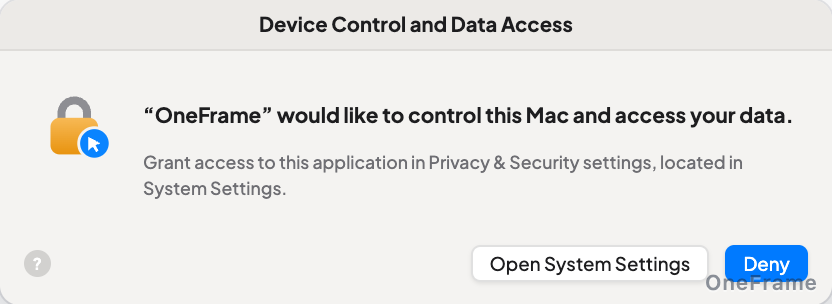
Open System Settings
In the dialog, click “Open System Settings”. It opens Privacy & Security › Accessibility directly.
- 03
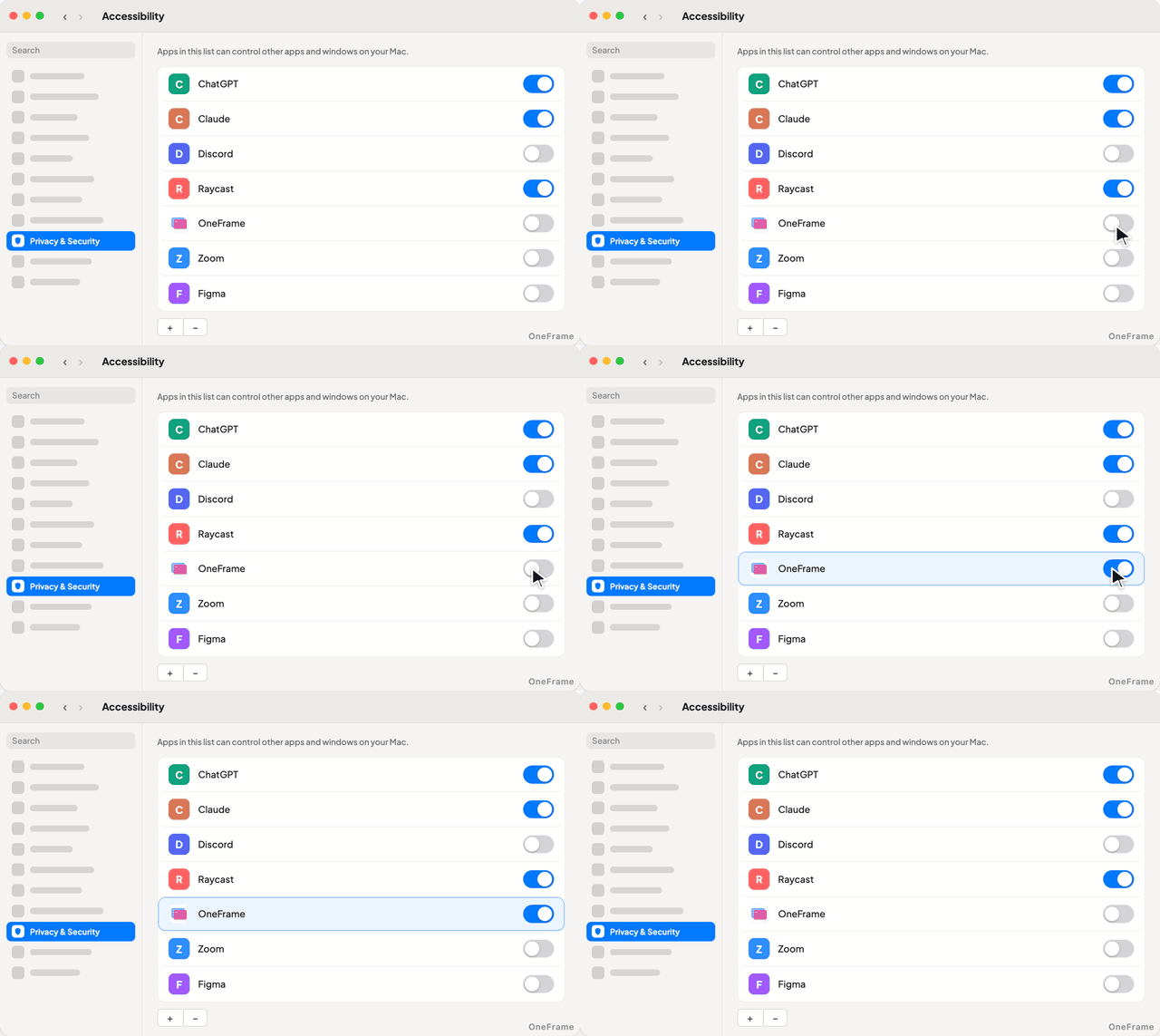
Turn the switch on
Click the switch next to OneFrame. macOS may ask for your password or Touch ID — that is a normal security check.
- 04
You are done!
The setup window closes by itself and OneFrame is ready. If the switch won’t stay on, quit OneFrame from the menu bar icon and try again.
OneFrame only reads and moves the windows you add. It never sees what you type, your passwords, or the content of your screen.